Microsoft Forms is a powerful tool for quickly setting up surveys, registration forms or evaluations. But did you know that you can also create group forms?
That may seem like a minor decision, but it makes a world of difference in a school context. In this article, we explain step by step how to go about this and why it is so important.
What is a group form?
By default, you create a form in Microsoft Forms using your own account. This means that you are the owner.
With a With a group form, the form is not in your name, but is part of a Microsoft 365 group (for example, a team)., the form is not in your name, but is part of a Microsoft 365 group (for example, a team).
👉 In practical terms: everyone in that group can view, edit and manage the form.
How do you create a group form?
You have two options.
Option 1 – Create a new group form
- Go to Microsoft Forms.
- Scroll down to “My groups”.
- Select the appropriate group (e.g. a team or working group).
- Click on “New group form”.
- Build your form as you normally would.
✔️ Result: the form is immediately assigned to your team
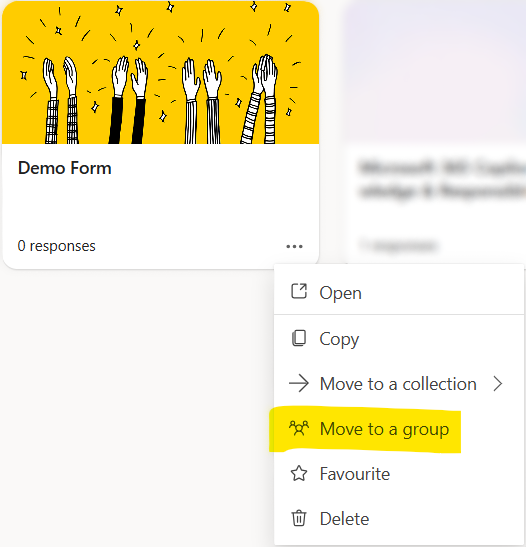
Option 2 – Move an existing form
Have you already created a form? If so, you can easily convert it:
- Go to “My forms”.
- Click on the three dots (…) next to your form.
- Select “Move to a group”.
- Select the correct group.
- Confirm.
✔️ Everyone in the group becomes a co-owner.
Why choose a group form?
1. Continuity guaranteed
With a personal form, everything is tied to a single person. If that member of staff leaves the school, the form may become difficult to access or even unusable. With a group form, everything remains accessible to the team. Colleagues can carry on working, even if the creator is no longer there.
2. Collaboration made easy
- Several colleagues can edit questions
- Analysing the results together
- Sharing a form with several people
- Saves you from endless emails asking, “Could you just tweak this a bit?”
- Everyone is working on the same version
3. Data stored centrally
With group forms, the responses are stored in the shared environment (SharePoint/Teams). This means: no separate Excel files, everyone works with the same data, and there is less chance of errors.
4. Improved workflow for schools
Things to bear in mind:
- Registration forms
- Project evaluations
- Surveys of pupils or parents
- Internal surveys
These forms are rarely “for one person” but are part of a team or school’s operations. It is therefore a good idea to set them up as group forms as a matter of course.
So...
A group form is a smart choice!
The benefits at a glance:
- Continuity during staff changes
- Working together without restrictions
- Centralised storage of answers
- Less paperwork and fewer errors