Anyone who has ever encountered the file path limit of Windows or SharePoint knows how frustrating that can be. A file that refuses to synchronise because the path is too long.
An error message that users do not understand.
Microsoft has now rolled out a new setting that allows you to change the name of the local OneDrive folder, thereby increasing your available path length.

What is the problem, actually?
By default, OneDrive creates a local folder named "OneDrive – Name of your organisation". The longer the name of your school, the quicker you run into problems. Windows has a maximum path length of 260 characters, and that limit is reached sooner than you think if you also use nested folders and long file names.
Think of a school with a name of 30 characters. The base path of a synchronised file is already quite filled, even before the user has created a single subfolder.
Custom Sync Root Folder Name
Microsoft has now released a new policy setting: CustomSyncRootFolderName. This allows you to freely set the name of the local OneDrive folder. For example, "OneDrive – Miniemeninstituut Leuven" can be simplified to just "OneDrive School" or whatever is shorter and clearer.
Limitations of the new name:
The name must not simply be "OneDrive" (without anything extra). It must contain at least one character, no special characters, and the full path after the change must not exceed 120 characters.
Another important detail: the name in the navigation pane of Explorer does not change. It will still display "OneDrive – Organisation Name". Only the actual folder on the drive, which you can find under C:\Users\username\, will receive the new name.
How do you set this up via Intune?
The setting is not yet in the built-in Settings Catalog of Intune. You therefore have two options to roll this out via Microsoft Intune (intune.microsoft.com):
- Create ADMX file
- Pushing PowerShell script
Importing ADMX
First, search for the correct files on a Windows computer where OneDrive is installed:
- Windows.admx to Windows.adml:
found in C:\Windows\PolicyDefinitions (and the en-US subfolder) - OneDrive.admx and OneDrive.adml
There are three possible locations, depending on how OneDrive is installed on your computer, for the latter:
Per-user installation (most common):
%localappdata%\Microsoft\OneDrive\<BuildNumber>\adm\
Per-machine installation (64-bit):
%ProgramFiles%\Microsoft OneDrive\<BuildNumber>\adm\
Per-machine installation (32-bit on 64-bit Windows):
%ProgramFiles(x86)%\Microsoft OneDrive\<BuildNumber>\adm\
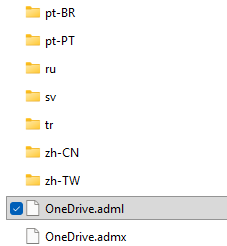
When you have these files:
- Go to the Intune admin centre, then Devices > Configuration > Import ADMX.
- First, upload the Windows.admx and the corresponding Windows.adml. Wait until the status shows "Available".
- Then upload the OneDrive.admx and OneDrive.adml in the same way.
- Go to Devices > Configuration > Create > New policy.
Choose Platform: Windows 10 and later,
Profile type: Templates > Imported management templates (preview). - Give the profile a clear name, for example "OneDrive – Custom folder name".
- In Configuration settings, search for: Computer Configuration > OneDrive > Customize OneDrive folder name on disk.
- Set the setting to "Enabled". Enter your tenant ID in the name field and the desired folder name in the value field.
- Assign the profile to the appropriate device or user groups and click on Create.
Looking up tenant ID?
Go to the Microsoft Entra admin centre (entra.microsoft.com) > Overview > Properties. There you will find your tenant ID.
PowerShell script via Intune
If you would prefer to skip the ADMX route, you can deploy the PowerShell script below via Intune. Adjust the values of $TenantID and $FolderName before you deploy it. Always test on a pilot group first.
$TenantID = "jouw-tenant-id-hier"
$FolderName = "OneDrive"
$KeyPath = "HKLM:\SOFTWARE\Policies\Microsoft\OneDrive\CustomSyncRootFolderName"
if (-not (Test-Path $KeyPath)) {
    New-Item -Path $KeyPath -Force | Out-Null
}
New-ItemProperty -Path $KeyPath -Name $TenantId -Value $FolderName -PropertyType String -Force | Out-Null
Then go to Devices > Scripts and recovery policies > Platform scripts > Add > Windows 10 and later.
Add the script, set "Run as logged-in user" to No, and assign it to the desired device groups.
Important: existing users
The new folder name automatically applies to new users.
Anyone who has already synchronised OneDrive must disconnect and reconnect OneDrive.
Then a new local folder is created with the new name.
The old folder remains and needs to be cleaned up manually.
Deep Dive Intune Microsoft Learn