
Imagine:
A colleague accidentally deletes a group of 200 users. Or a Conditional Access policy is adjusted in such a way that suddenly no one can log in. What do you do then?
Until recently, the answer was: sift through audit logs and hope that you could reconstruct everything. That is changing now.
What is Entra Backup and Recovery?
Microsoft has rolled out a new feature in Microsoft Entra ID this week: a built-in backup and recovery solution for your tenant. The feature is still in Preview but is already available in the Entra admin centre.
The idea is simple. Every day, Microsoft automatically creates a backup of the most important objects in your tenant. These backups are retained for 5 days.
If something goes wrong, you can restore an earlier point in time, either per object or in bulk.
The backup is fully automatic: there is nothing to set up, nothing to schedule.
It just works, in the background.
What is being backed up exactly?
The following items are automatically included in the backup:
- Users and groups
- Applications and service principals
- Conditional Access policies
- Named locations
- Authentication method settings and authorisation policy
Users or groups that are synchronised from your local Active Directory cannot be restored via Backup and Recovery.
They need to be restored at the on-premises source. They do appear in the difference reports, which is still useful for tracking changes.
What do you need?
To use the feature, you need a Microsoft Entra ID P1 or P2 licence. This is already included for most schools with a Microsoft 365 A3/A5 subscription. However, it is not part of Office 365 A1.
There are two new roles:
- Entra Backup Reader: can view backups and difference reports. Read-only.
- Entra Backup Administrator: can also perform recovery actions and create difference reports. Global administrators automatically have these rights.
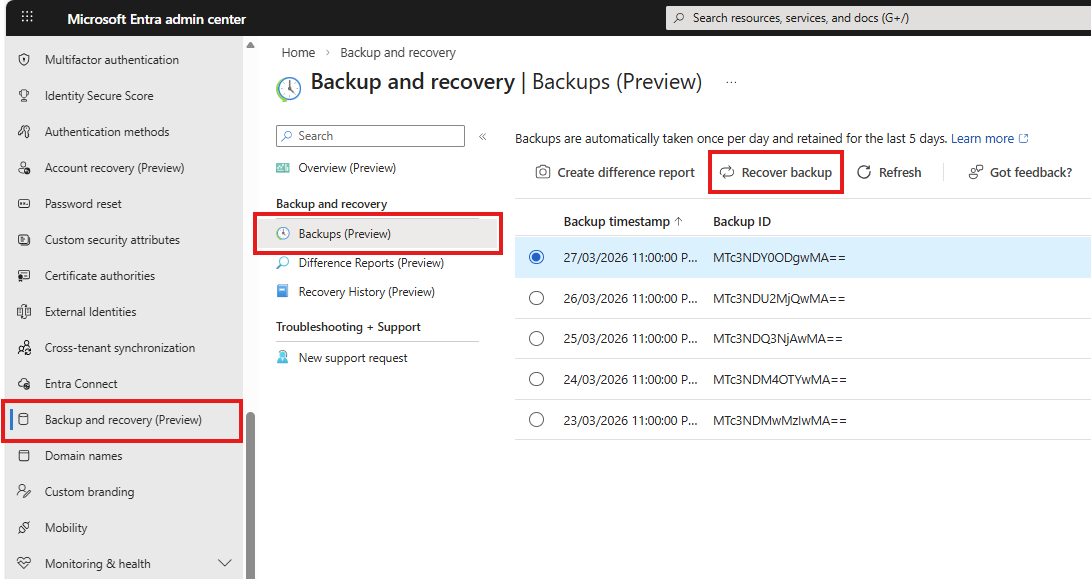
Step by step: restoring a backup
- Go to the Microsoft Entra admin centre (entra.microsoft.com)
- Click on "Backup and recovery" in the left navigation menu
- Open "Backups" and choose the desired backup
- Click on "Create difference report" and view the changes
- Select "Recover" for the desired items or for the full backup
What are the limitations?
Five days is short. If an accidental deletion is only noticed after a week, you are too late. Hard-deleted items cannot be restored using this function, only soft-deleted ones.
Nevertheless, this is a significant step forward. The feature is included for free with your P1 licence, fully automated, and the backups are immutable, even for a Global Administrator. Even if an attacker gains access to your tenant, they cannot delete the backups.
Do you want to know more about Microsoft Entra ID and how to optimally secure your tenant? Check out our offering of the Microsoft Entra Deep Dive training.